All module features
Changelog
Installation and Update
Frequently Asked Questions and Issues
How to get the latest version?
Setting up Google Analytics 4
Setting up Google ADS remarketing
Setting up Facebook (Meta) remarketing
Setting up a feed for Google Merchant, Facebook, Tiktok
Setting up Telegram notifications
All module features
Changelog
Installation and Update
Frequently Asked Questions and Issues
How to get the latest version?
Setting up Google Analytics 4
Setting up Google ADS remarketing
Setting up Facebook (Meta) remarketing
Setting up a feed for Google Merchant, Facebook, Tiktok
Setting up Telegram notifications
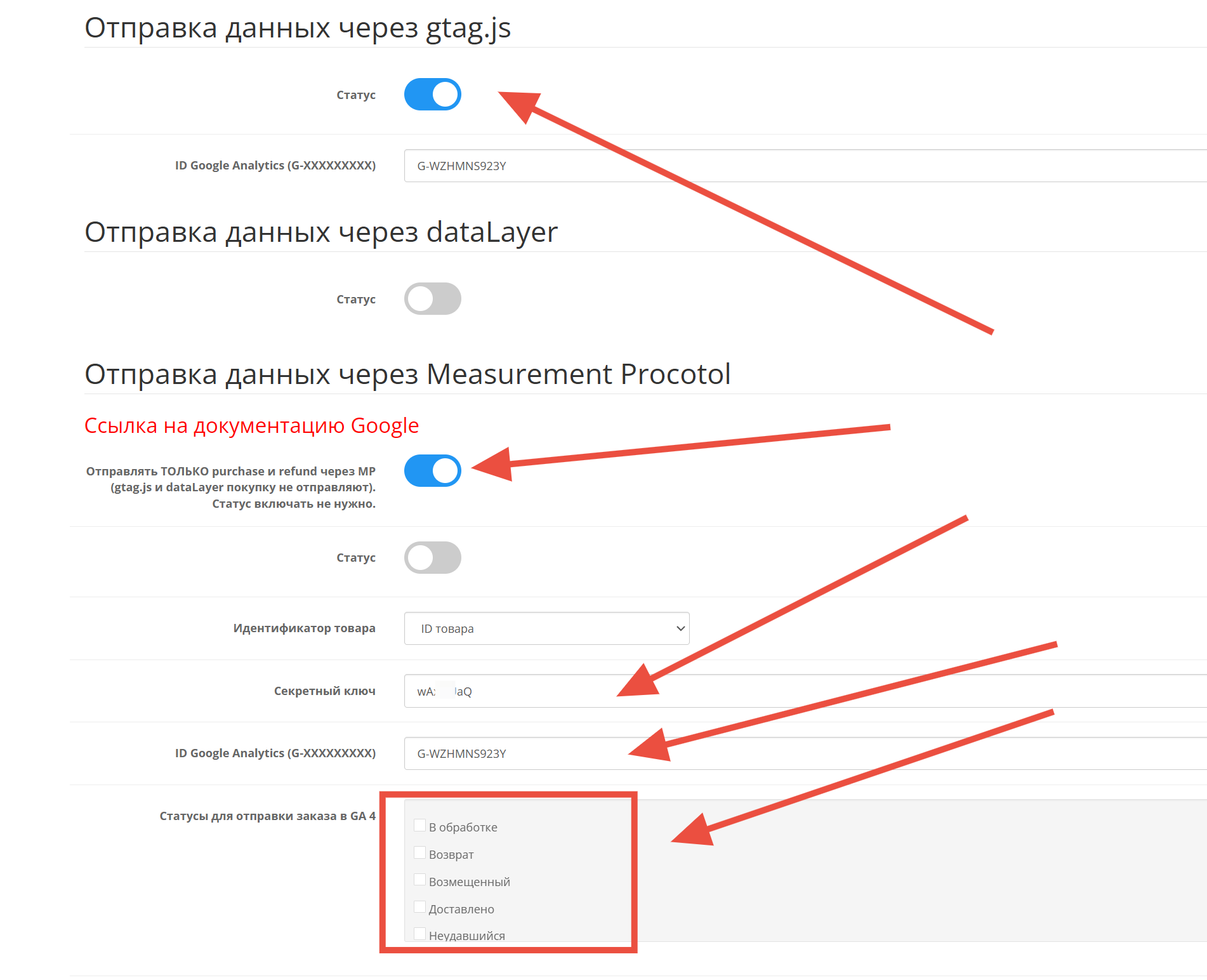
Setting up Google Analytics 4
Enabling all at once is NOT NECESSARY, as it will cause data duplication or triplication, but with effort, you can send data to 3 (or more) different views.
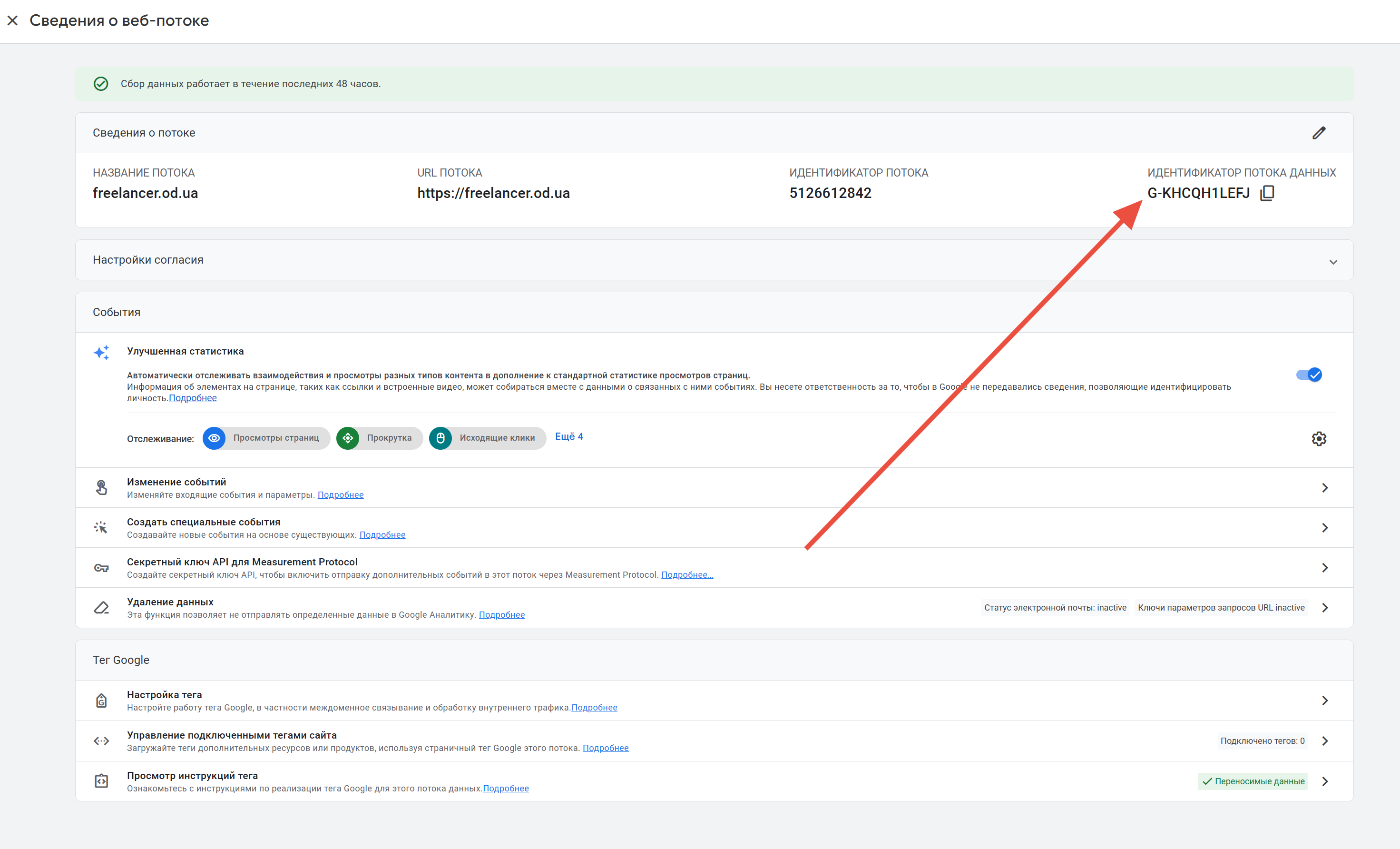
The simplest method; to make everything work well, it’s enough to connect Google Tag in the header in the <head> tag (can be entered in the counters tab) and specify the data stream identifier in the module.
In Analytics, go to Admin - Data Streams - select your stream or create a new one, and get the data stream identifier here
Nuances:
If multiple tags are used on the site, they need to be connected like this:
<!-- Google tag (gtag.js) -->
<script async src="https://www.googletagmanager.com/gtag/js?id=TAG_ID_1"></script>
<script>
  window.dataLayer = window.dataLayer || [];
  function gtag(){dataLayer.push(arguments);}
  gtag('js', new Date());
  gtag('config', 'TAG_ID_1');
  gtag('config', 'TAG_ID_2');
</script>
If Google Analytics 4 is already connected via Google Tag Manager, you need to either disable the page send event in GTM tag settings
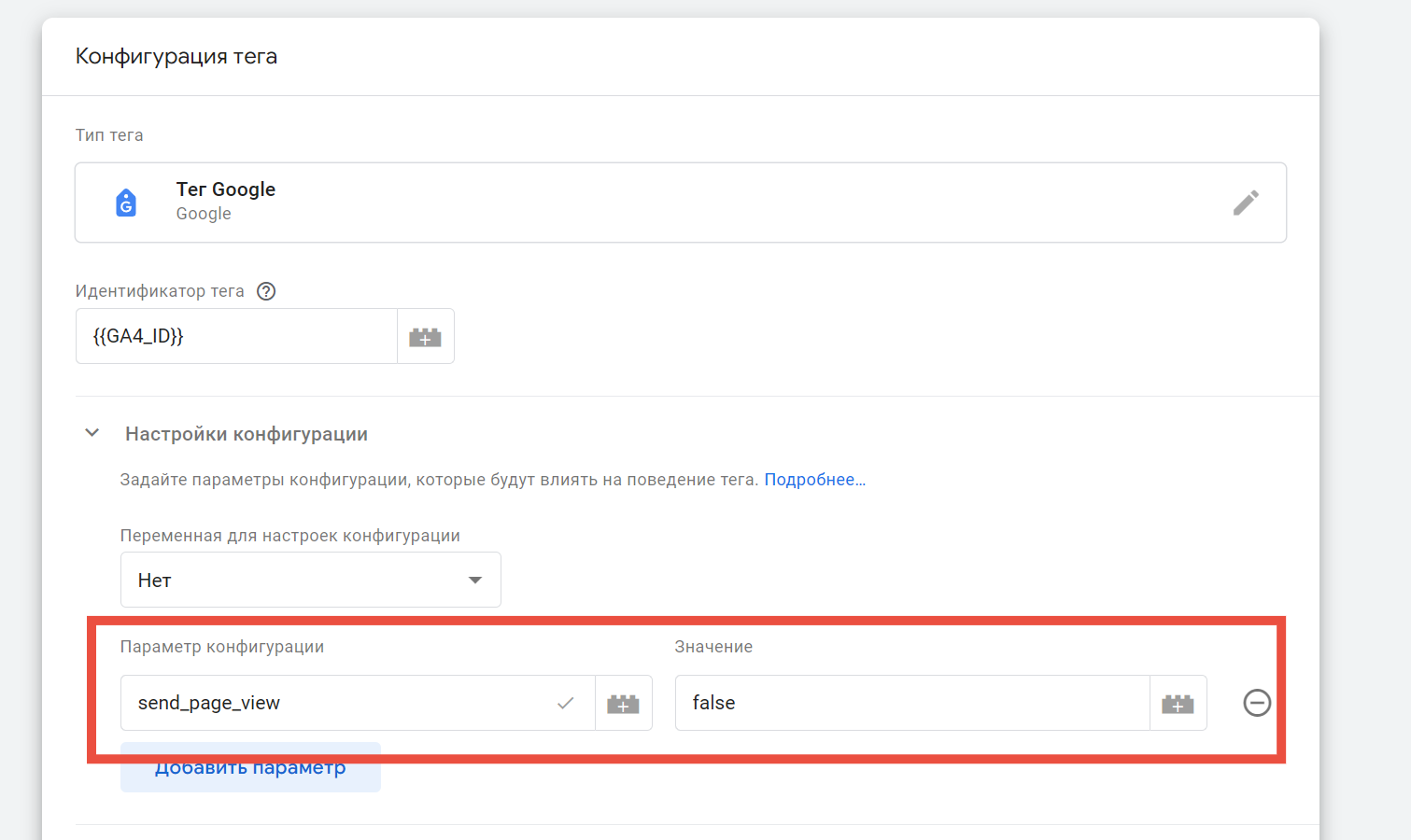
Or disable page view in Google Tag like this:
gtag('config', 'TAG_ID', {
  send_page_view: false
});
The point is to avoid duplicating the page view event page_view
You can also use tag grouping in this way
gtag('config', 'TAG_ID_1', { 'groups': 'group1' });
gtag('config', 'TAG_ID_2', { 'groups': 'group1' });
In the module, specify group1 instead of the data stream identifier, and events will be sent to 2 views simultaneously
A fairly simple method, implemented according to the documentation
https://developers.google.com/tag-manager/ecommerce-ga4?hl=ru The link doesn’t work)
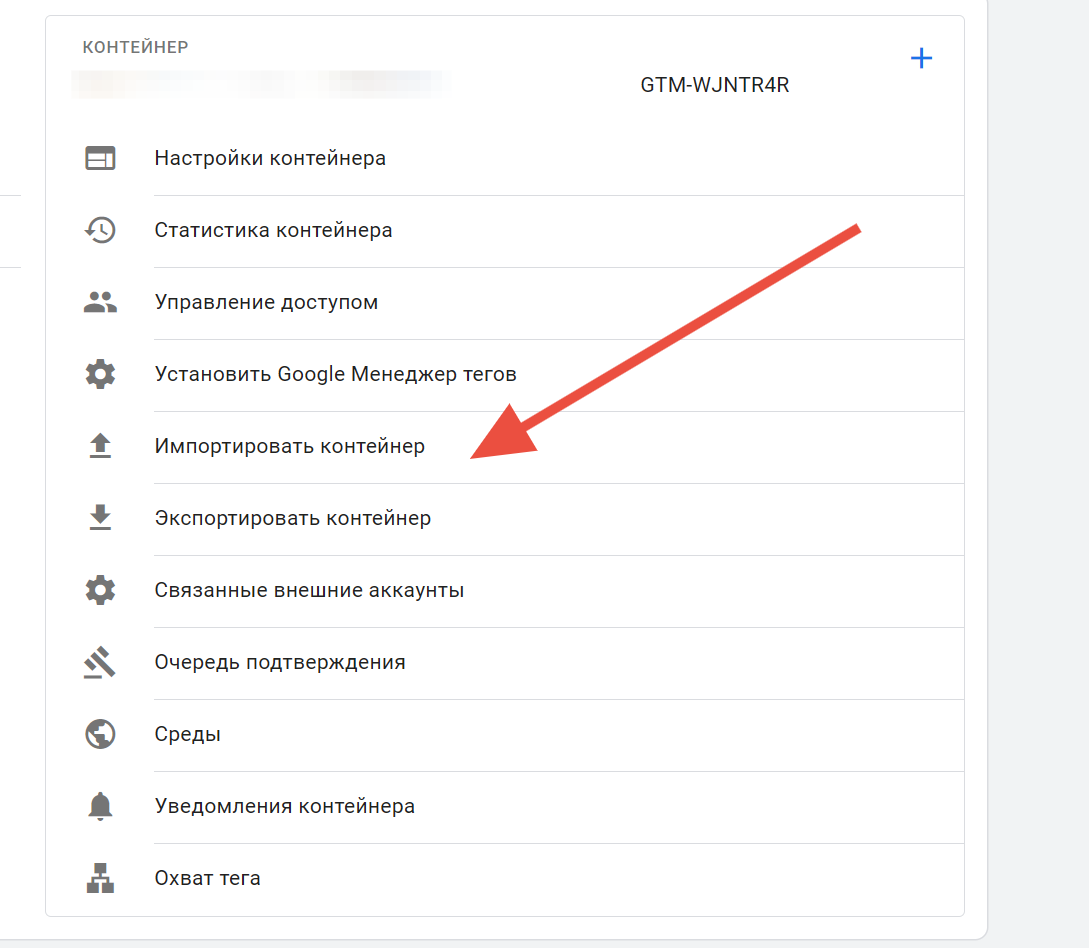
Enable it in the module, go to Google Tag Manager in administration - import JSON Container (click save as:)), and change the GA4_ID variable to your data stream identifier
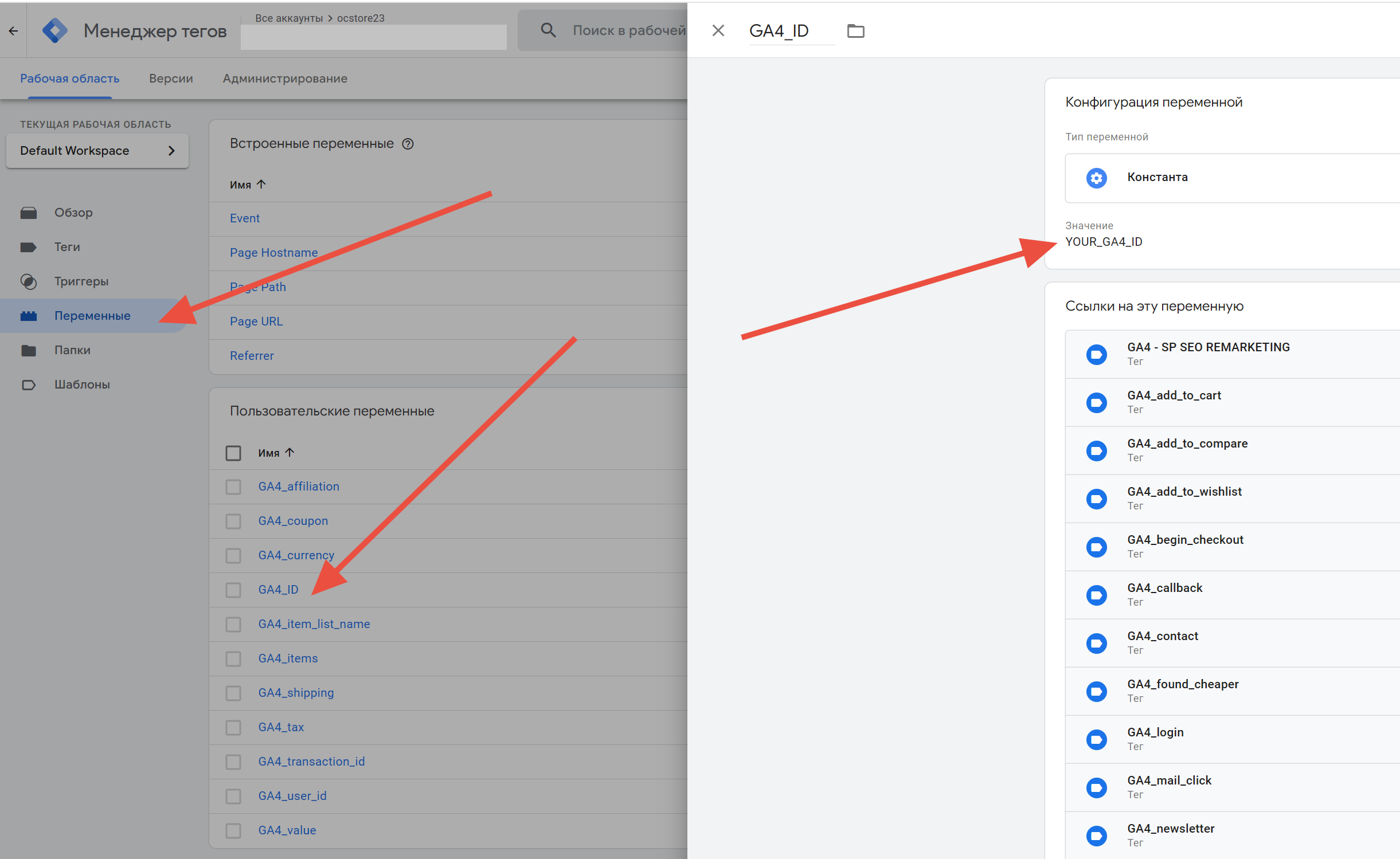
Important - the analytics counter must be connected via Google Tag or in Google Tag Manager in the GA4 - SP SEO REMARKETING tag - enable sending page views
For this sending method to work, the analytics counter must be connected via gtag.js or Google Tag Manager; the module is not a replacement for the counter!
- Enter the data stream identifier in the settings
- Select order statuses for sending or resending a purchase
- Get the API Key here
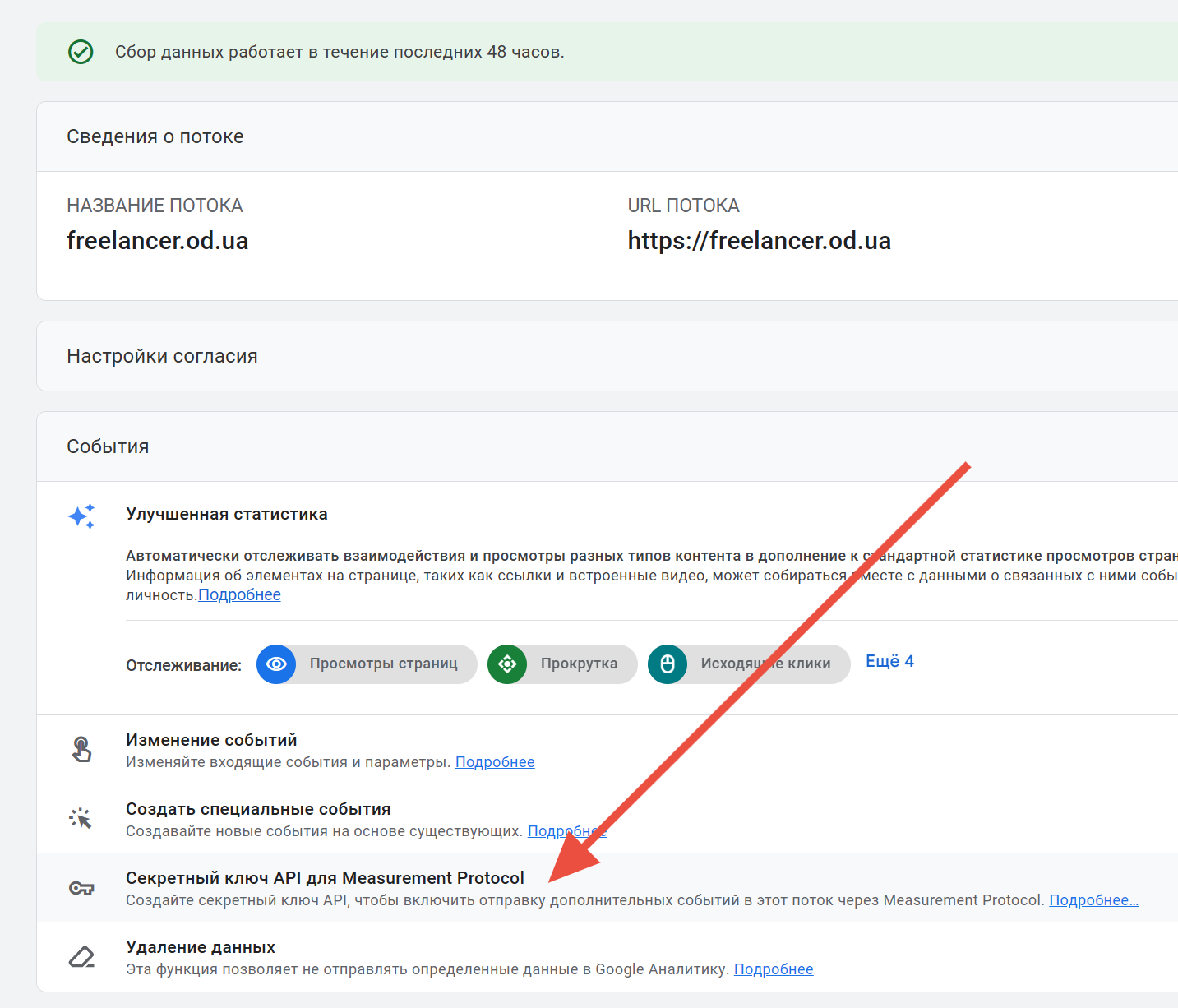
It’s also possible to send only transactions and refunds via Measurement Protocol
Used if payment modules don’t return the customer to checkout/success
Enable the parameter Send ONLY purchase and refund via MP (gtag.js and dataLayer don’t send the purchase). No need to enable the status.